
Error Logging via our APP, will give us some insight on what exactly is happening on our APP on your phone.
You may see a popup with information about the error, and an option to share that error information with us. This error email will also contain information about exactly what device and what version of android you are using, and it will be emailed to our support staff.
When contacting us with an error, it is helpful if you can share:
- The operating system you are using (eg. Android/IOS)
- Android / IOS version
- Your Device name and model
Connection Timed Out / Unexpected End of Stream Error #
We do suggest that you try and download and install our app using a strong internet connection, and possibly over Fibre WIFI connection.
A NOTE FOR IOS USERS: There is a block on maximum amount of content download on your data connection, imposed by Apple. You can override this in your connection settings. WIFI connections should have no restrictions. Some users are reporting download issues via an MTN sim card too.
If you receive the following sort of error or any other error when trying to install the high definition map or guide on the in-app purchase option – please see solutions below:
(Note: if you are using a HUAWEI device, then please see right below of this FAQ item for HUAWEI device solution).
Error encountered on Tracks4Africa Guide App.
Device:{“available”:true,”platform”:”Android”,”version”:”6.0.1″,”uuid”:”70a4687d01f10e26″,”cordova”:”4.1.1″,”model”:”E5823″,”manufacturer”:”Sony”}
Error:{“code”:3,”source”:”https://tracks4africa.co.za/google/delivery/download/6279f6ff20194739aaec8567e34a0c1d/“,”target”:”file:///data/user/0/za.co.tracks4africa.guide.hybrid/databases/angola_to_mozambique.zip”,”http_status”:200,”body”:null,”exception”:”unexpected end of stream”}
SOLUTION:
Please try and download the map again using a strong fibre-WIFI internet connection. Please note that the size for the maps are big and could take a bit long. Wifi could result in a weak internet connection.
First try this:
Whilst ensuring you have a good internet connection, please EXIT our APP as follows: (ie. its important that you exit it correctly):
- Under MENU – choose EXIT APPLICATION.
And then try to download the guide/s again.
Secondly, if this did not work, then try this please:
Before trying to download the guide/s again please follow the below steps to UNinstall the guide/s that could be partially downloaded.
Go to:
➢ Menu
➢ Settings
➢ Guides
➢ Then select the guides to be uninstalled
Then:
- Under MENU – choose EXIT APPLICATION.
Then open and try to re-install your guide/s.
Thirdly, check if its a network/internet issue:
If your download is failing when for example using an MTN sim card for internet connection, then switch over to your Wifi network. Or if its failing over a WIFI connection, then switch over to a sim card connection.
If still unsuccessful:
If you tried all of these options and your are still unsuccesful, please contact us.
Also please note: The downloads are also direct from Apple/Google severs so we cannot say if they are up or down from our side.
HUAWEI device solution
This seems to be a general problem on some Huawei phones – The Download Progress Bar does not move, but the guide/s is probably downloading in the background. The customer is advised to try and do the download again when there is a very good internet connection available. The customer should then just leave the phone and not be too bothered by the fact that that progress bar is not moving. This should sort out the problem.
Software caused connection abort #
Follow same steps here.
App closes after syncing Trips #
If your App suddenly closes after you tried to sync a trip – the problem could be that there is a Trip in your Trip Planner that does not have a route in it. This is a sending a null/empty value to the app – causing it to crash.
Our developers are working on a solution.
Interim solution:
You can either:
- Look through your trips and remove/delete any trips with no Routes in them – that is if you no longer need those trips
- OR look through your trips and add routes to any trips where there are routes missing in them. See this guide to help.
Then try to resync the trips to your app once you have applied those changes.
In-App Purchases Failed / won’t download #
If you have purchased a guide or the Africa Map via and in-app purchase, and it did not download – then you can simply click on the guide or Africa map again – to try again. The system will recognise that you already purchased the relevant item and it will try to download again.
Alternatively, follow these steps in order to rectify this:
The first step is to verify that the purchase was successful, i.e. did you get confirmation from Apple/Google that you bought these in-app purchases.
Then follow these steps:
- First make sure your device is updated with the latest Android / IOS software.
- Secondly, make sure that the GUIDE APP is updated to the latest version (eg. Go to the App store, search for the Tracks4Africa Guide App, it should indicate there if you need to click on an “update” or not).
- Thirdly, its better if you can do this over a Fibre WIFI connection.
- Fourthly, also make sure you have enough space on your device.
- Lastly – check on IOS if “Low Data Mode is turned on for a Wi-Fi network (or cellular)“:
- This can affect downloading/restoring purchases.
- Go to Settings > Wi-Fi. Tap the ⓘ next to your Wi-Fi network. Turn Low Data Mode OFF
- Reopen the app and try again
Then once you’ve checked those steps, check If there is an option under your in-app purchases screen to “Restore purchases” then tap on that and try that.
If that does not work then:
We suggest you restart your device, make sure you are on a good internet connection (file downloads are big).
Then open the app and go to the menu where you buy maps.
At the bottom of this window there is a Restore Purchases button. Click this to restart the downloads. They will take a while to download and your internet connection should not be interrupted.
Also make sure while you are doing this that all other apps are closed on your phone, and keep the app open while the download is taking place.
The files are quite big so you need to be on a good internet connection to download these. The downloads are also direct from Apple/Google severs so we cannot say if they are up or down from our side.
If this does not work either then:
UNINSTALL the app completely.
Then reinstall it, still making sure you have VERY good and UNINTERRUPTED internet connection (preferably over a WIFI connection via a Fibre connection).
You should then be able to restore your purchases from the in-app purchases screen, you will not be charged for that again.
Also make sure while you are doing this that all other apps are closed on your phone, and keep the app open while the download is taking place.
A NOTE FOR IOS USERS: There is a block on maximum amount of content download on your data connection, imposed by Apple. You can override this in your connection settings. WIFI connections should have no restrictions.
NOTE: IF none of these steps work, then we suggest you try at an alternate Fibre WIFI location.
If still no success, then we advise you request a refund from your relevant APP store asap – they allow a certain window timeframe in which refund requests are allowed.
APP is not available for my country #
If you try to download our App from the Google Play Store – you may get an error saying that the app is not available for your country. The country that you are in while trying to do this, may not be on Googles list of countries to allow apps to be purchased in.
See this list for the Country availability for Google Play Apps
Error “In-app purchases are not allowed” #
If you have installed our guide app, and when trying to purchase and install an in-app purchase, you get an error saying “Purchase: In-app purchases are not allowed” – this is due to a setting on your device.
Please make sure that you have enabled in-app purchases on your device, in your settings.
That should solve the problem.
Error: You cannot get In-App Purchases for this App #
Scenario: You downloaded and installed the Guide App on your phone. At a later stage when trying to do an in-app map purchase, you get an error on your device saying: You cannot get In-App Purchases for this App – You can only get In-App Purchases from apps associated with your Apple ID.
Solution:
When installing the guide app initially, a certain i-Tunes account is used. If wanting to do an in-app purchase then or at a later stage, the exact same i-Tunes account used for installing the app initially, must be used for the in-app purchases, otherwise you will get the error: You cannot get In-App Purchases for this App – You can only get In-App Purchases from apps associated with your Apple ID.
Users sometimes use one Apple ID for iCloud and a different Apple ID for Media & Purchases (App Store).
You can check: Settings → Apple ID → Media & Purchases
Error “error in map service….” #
If you get this error: “error in map service, error when creating offline map. TypeError: cannot read property resize of undefined”:
If you are trying to install our guide app and get this error message then it probably means that the device you are trying to run the app on is not supported.
Examples of where this error has been reported is:
- Android devices with Android version 5 (ie. this Android version has not been supported by Google for years, and our app is not compatible. We would suggest you upgrade to a new Android version).
- Windows Bluestacks (ie. our Apps will not run on this application on your windows PC)
- Android Auto (ie. our Apps will not run on this application)
Geolocation error #
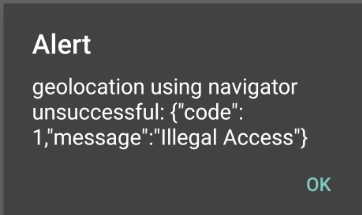
If opening the app or updating to our latest version and you get an error that sais: “geolocation using navigator unsuccessful etc.” – please first uninstall and reinstall the app entirely, this should solve the problem.
Also make sure that your location service is switched on, on your smartphone.
If you need more assistance, please contact our sales team.
Location is not working #
If your location is not showing on the app – please note:
- Apple does not include a GPS receiver with Wifi only iPad models. So the location will not work. Apple includes a GPS chip in iPads that has the ability to take a SIM card. So if you have an iPad that can receive a SIM then it should also have a GPS chip. You do not have to insert a SIM for this to work, it is simply an indication of what model you have.
- TIP: The iPad with a WIFI only option does not have a GPS receiver in. If you have an iPhone with a GPS receiver in, you can pair your ipad with your iphone, and use your iphones internet hotspot. If you do that, your iPad will be able to use the iPhones location, and you will be able to see the correct location on your ipad. BTW – this will work with all location-tracking apps, its not a T4A Guide App specific thing.
More checks you can do – in this order:
- Check if the devices actual location is switched on or off in settings (if you have not checked this yet) (eg. On an ipad mini 2: Settings/Privacy/Location Services/Toggle it on or off)
- Also try tapping on the “Hairpin” icon in the bottom right of your screen. It will disappear – pan the map to move it – it should show up again
- Make sure that the T4A App is given permission to use the location of the device.
Error: Failed to find all listings Error #
Uninstall the app, and re-install over a good internet WIFI Fibre connection, and then ALSO FREE UP SPACE on the device, then it worked. The space issue on the device seems to be the contributing factor here.
Error: No Listings – when trying to search #
The following steps may sort it out:
- Uninstall the app
- RE-install the app
- In settings – under Map – uncheck the setting to Auto restore the map state
- Download the in-app purchase again
Note: Its unclear what really caused the error here and if the Map restore state really has anything to do with the error – but it resolved the issue.
Storekit error #
The best way to resolve this, is to completely uninstall the app. Then whilst you have VERY good internet connection (preferabley WIFI with Fibre), reinstall the app and make sure you have enough space on your phone for the app – it will take just under 1 gig space.
Error: Alert: in all countries I got error {} #
Uninstall the app, and re-install over a good internet WIFI Fibre connection, and then ALSO FREE UP SPACE on the device, then it worked. The space issue on the device seems to be the contributing factor here.
Places/POIs/Waypoints don’t show on map when switching on categories #
UNINSTALL the app completely.
Then reinstall it, still making sure you have VERY good and UNINTERRUPTED internet connection (preferably over a WIFI connection via a Fibre connection).
You should then be able to restore your purchases from the in-app purchases screen, you will not be charged for that again.
Also make sure while you are doing this that all other apps are closed on your phone, and keep the app open while the download is taking place.
Detailed POI Information Not Available? #
If you get the error message that in order to see the detailed information about points of interests, you need to purchase the country guide in the in-app purchases screen:
- You did not purchase the relevant country guide eg. If you want to see detailed information about campsites in Namibia, then you would have to purchase the Namibia Guide.
- You DID purchase the relevant country guide and the information should show. Please check the following:
- That you have enough space on your device
- Then follow steps here (ie under “UNINSTALL the app completely“ – go to this link and see the top of your screen) to uninstall and re-install the app regardless (it could be that the installation did not execute properly)
Compatibility #
Your device will not be compatible if:
- it does not have dedicated built in GPS hardware
The following devices are NOT compatible with our guide app:
- Redmi Pad 2 device
Trip Routes/POIs not showing on App #
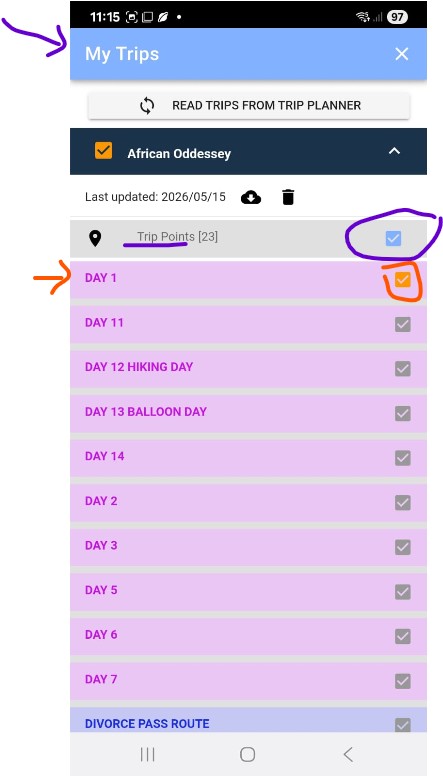
If you have planned a trip on the Trip planner, and synced it to your App – and notice that the routes and/points are not showing on the map – make sure you have activated them on the app under the Trip section. Example:


 Tracks4Africa