
Once the T4A GPS Maps are on your GPS unit – check these important settings!
Switch on your GPS then check: (please note the options available on the GPS units may differ between various models).
Message when your GPS starts up #
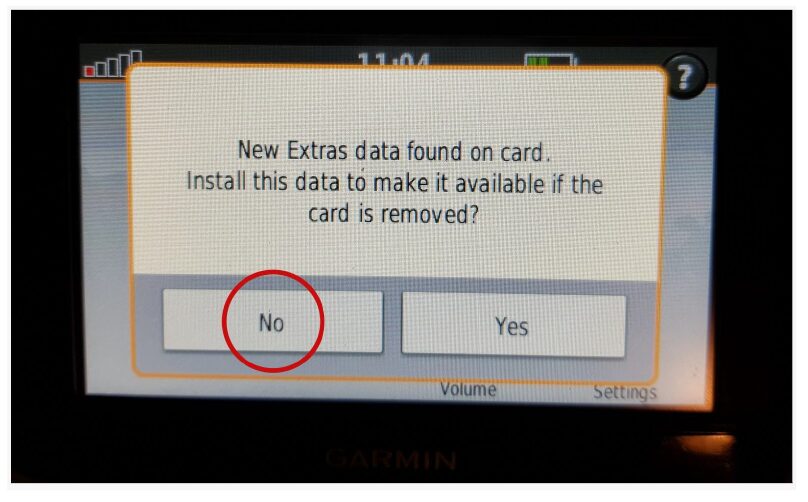
You may see the message as per below appear – choose “NO“.
This means that the Garmin unit has picked up that there is an extra data file on the SD Card. In this case it has picked up on the Africa Guide, that is supplied by T4A, and included on our SD Cards. It is not necessary to install this onto your GPS unit, as you can access it directly from the SD Card.
Take note of these settings! #
- Set preference to Fastest Time / Fastest Route (ie. Route Calculation)
- Switch off Avoidances
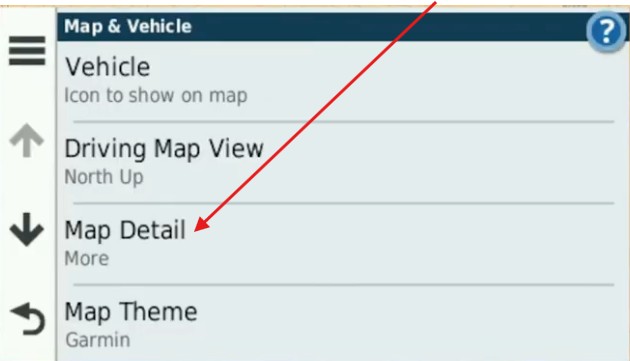
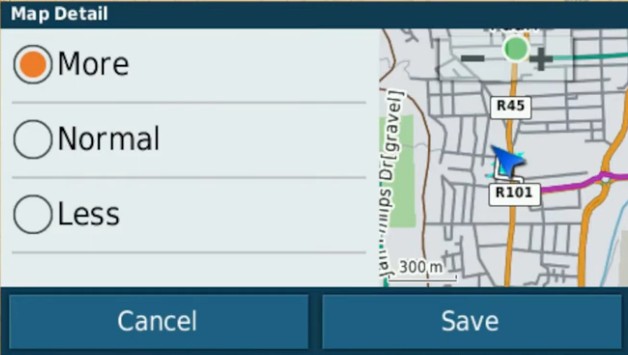
- Set Map detail to more
- Ensure only the T4A Map is selected on your GPS
Route Calculation can be set to: #
- Fastest Time / Fastest Route / Minimise Time
- The GPS will take you on the fastest routes such as main gravel or tar, rather than on 4×4 tracks, two-spoor etc.
- Note that the fastest time may not necessarily be the shortest distance
- Shortest Time / Shortest Route / Minimise distance
- The GPS will then always pick the shortest route, which will often include 4×4 tracks, two-spoor etc.
- Note that the shortest distance, over 4×4 tracks, may take longer to complete than a “fastest time” route, which may be longer but faster to drive.
- Off Road
- Take care here! Off road assumes that there are NO roads here, and draws a straight line from your position, to your destination. So it won’t navigate along existing tracks. If you choose this option, and you see tracks, you can then just keep following them as you physically see in front of you, and make up your own mind which ones you want to use. It will require a lot more user decision making on your part. But it won’t warn you that there may be a dead end, or if there is no connecting road to your destination.
Avoidances: #
- Toll Roads: one can tick this one, and the GPS will keep you off highways with toll roads!
- Unpaved Roads: If you want to go on gravel roads, this must be UNticked – remember the ones you tick, are the ones the GPS will avoid. So you tick toll roads, so the GPS will avoid toll roads. But UNtick unpaved roads, as you WANT to travel on gravel. Keep in mind your GPS will start looking for the shortest route as soon as you leave your destination, so you may want to toggle your Fastest Time and Avoidances settings as you travel, depending on what you want to do.
- But it is not always an exact science – if you “select to avoid tolls or highways”, the GPS will select the best route and try to avoid tolls and highways as far as possible, but you may still travel through a toll or a highway if it is a more sensible route than avoiding it…
*Note on Shortest Route & Unpaved Roads: If you are using these settings, your GPS will always look for the SHORTEST route, regardless if it is tar or gravel, it will take you on the shortest route. If you tick “unpaved roads”, you are telling the GPS to avoid “unpaved roads”, and if you tell it to use shortest route, it will take you the shortest route on tar only. If you tick “toll roads” and use shortest route, it will avoid toll gates (but it will not avoid other tar roads).
*Note if you specifically want to travel backroads: Best practise is to tick Shortest Distance and untick ALL avoidances but always apply some brainpower too, check which routing the gps follows, don’t just religiously follow the GPS.
Map Detail #
Set map details to MORE or MOST. See this example:
Ensure only the T4A Map is selected on your GPS #
To use T4A GPS Maps on your Garmin device, you must disable any street navigation maps stored on the internal memory, as both cannot be active simultaneously. Ensure that only T4A GPS Maps is selected for navigation, or choose your street maps (e.g., Garmaps) if preferred. Using both map products for the same area can cause conflicts, so switch off the one you’re not using.

See this topic – its VERY important: Enable T4A Maps on GPS
Settings when planning routes #
BASECAMP/MapSource vs GPS settings #
Make sure your settings on BASECAMP/MapSource is the same as the settings on your GPS else you will get different results if transferring routes/waypoints from BASECAMP/MapSource to your GPS unit.
Use Waypoints for Routes #
We do recommend that you plan your route on a computer where it is easier to see the gravel roads on BASECAMP/MapSource, and then send those POI’s/Waypoints to the GPS and follow the POI’s/Waypoints.
It is essential that you create waypoints, and use the waypoints to create the route, and NOT use the routing tool in MapSource/BASECAMP to create the route, as we have encountered problems transferring the route created with the routing tool to the GPS, often it will not recalculate on the GPS.
*POI/Waypoint (Is a Point of Interest like a campsite, fuel stop, restaurant etc)


 Tracks4Africa